


Understanding the Frustration of Connection Issues
Technology is wonderful when it works correctly. However, it creates immense frustration when it fails unexpectedly. You might be ready to start your workday. You turn on your computer, but nothing happens. This is a common scenario for many users. Consequently, the search term logitech keyboard not connecting has become increasingly popular. Logitech is a leading manufacturer of computer peripherals. They produce high-quality keyboards known for durability. Yet, even the best devices encounter technical glitches occasionally. Understanding why this happens is the first step toward a solution.
There are several reasons for a connection failure. It could be a simple hardware issue. Alternatively, it might be a complex software conflict. This article aims to demystify the troubleshooting process. We will explore various causes and their fixes. Furthermore, we will provide step-by-step instructions to restore functionality. By following this guide, you can save time and avoid unnecessary stress. Let us dive into the world of hardware connectivity.
Initial Hardware Checks and Power Supply
The most common causes are often the simplest ones. Therefore, you should start with the basics. First, check the power source of your keyboard. Most wireless models use AA or AAA batteries. These batteries drain over time. Consequently, a weak battery is the primary culprit for connection drops. You should replace the old batteries with fresh ones. Furthermore, ensure you insert them with the correct polarity. Reversing the positive and negative ends prevents the device from turning on.
- Power Switch: Locate the physical power switch. It is usually on the top or bottom edge. Toggle it off and on again. This action can reset the internal circuit.
- LED Indicators: Look for LED lights. They provide vital status information. If the light does not turn on, the device lacks power. Therefore, check the battery compartment again.
- Physical Damage: Inspect the keyboard for spills or drops. Physical trauma can dislodge internal components. Additionally, liquid spills cause short circuits.
Transitioning to the connection method, verify the USB receiver or cable. If you use a wired model, check the USB port. Try a different port on your computer. Sometimes, a specific port malfunctions. Consequently, the computer fails to recognize the device. For wireless models, ensure the USB dongle is secure. A loose dongle cannot transmit data effectively. These initial checks resolve a large percentage of issues. However, if the problem persists, you must look deeper. The issue might be more technical than a dead battery.
Troubleshooting the Unifying Receiver
Logitech uses a proprietary technology called the Unifying Receiver. This small USB dongle allows multiple devices to connect. It is a brilliant piece of engineering. However, it can experience glitches. If you face a logitech keyboard not connecting issue, the receiver is a likely suspect. First, try a different USB port. This forces the computer to reinstall the driver. Furthermore, avoid using USB hubs if possible. Hubs can introduce latency or power inconsistencies. Plug the receiver directly into the motherboard.
- Logitech Unifying Software: Download the official software from the Logitech website. This utility helps manage connected devices. You can use it to re-pair your keyboard.
- Interference: Wireless signals operate on the 2.4GHz frequency. This frequency is crowded. Wi-Fi routers and microwaves can interfere. Therefore, move other electronics away from your setup.
- Device Conflict: Sometimes, other Logitech devices cause conflicts. If you have multiple receivers, they might cross-talk. Remove other receivers to test the connection.
Transitioning to software solutions, the Unifying Software is essential. Open the program and click “Add a device.” Follow the on-screen instructions. You usually need to turn the keyboard off and on. Then, press the connect button on the device. This process re-establishes the encrypted link between the two components. It often fixes the “device not found” error. Consequently, your keyboard should start working immediately. If the software cannot find the device, the receiver might be faulty. In that case, you may need a replacement.
Resolving Bluetooth Connectivity Problems
Many modern Logitech keyboards support Bluetooth. This feature allows connection to tablets and laptops. However, Bluetooth is notoriously finicky. The pairing process can break for various reasons. First, check your computer’s Bluetooth settings. Ensure Bluetooth is turned on. It sounds obvious, but it happens often. Furthermore, remove the keyboard from the list of paired devices. This process is called “forgetting” the device.
- Re-Pairing: Go to Settings > Bluetooth & devices. Select the keyboard and click “Remove device.” Then, put your keyboard into pairing mode. Usually, you hold a specific button for three seconds.
- Bluetooth Drivers: Your computer has its own drivers. These drivers can become outdated. Consequently, the computer fails to communicate with peripherals. Update your system’s Bluetooth driver.
- Supported Devices: Ensure your device supports Bluetooth Low Energy (BLE). Older computers might struggle with modern BLE keyboards. Therefore, a USB receiver is necessary for older hardware.
Transitioning to the pairing mode, look for a flashing blue light. This indicates the keyboard is discoverable. If the light does not flash, the keyboard is not ready. You might need to hold the “PC” or “Mac” key combination. Consult your specific model’s manual for instructions. Once the device appears on the screen, click it to connect. The computer will install the necessary drivers automatically. This fresh pairing often resolves the logitech keyboard not connecting problem for Bluetooth users. It establishes a new, clean handshake between the devices.
The Importance of Software and Driver Updates
Software acts as the language between hardware and the operating system. If the software is outdated, communication fails. Consequently, keeping your drivers updated is crucial. Logitech provides software called “Logitech Options” or “Options+.” This software manages customization and firmware updates. You should install this application. It often detects connection issues automatically. Furthermore, it checks for firmware updates for the keyboard itself.
- Firmware Updates: Firmware is the code inside the keyboard. Manufacturers release updates to fix bugs. An outdated firmware might cause connectivity drops. Therefore, use the software to update the keyboard’s internal system.
- Windows Updates: Operating systems constantly evolve. Windows updates often include driver patches. Ensure your OS is fully updated. This ensures compatibility with the latest hardware.
- Device Manager: In Windows, use the Device Manager. Find your keyboard in the list. Right-click and select “Update driver.” You can search automatically for drivers.
Transitioning to manual updates, sometimes automatic searches fail. You can visit the Logitech support website. Enter your specific model number. Download the latest driver manually. This ensures you have the most compatible version. Outdated drivers are a silent killer of productivity. They cause intermittent connection losses. Therefore, regular maintenance of your software environment is essential. It prevents future connection headaches. A well-maintained system runs smoothly and recognizes devices instantly.
Dealing with Wireless Interference
Wireless technology relies on radio waves. These waves travel through the air. However, they can collide with other signals. This is known as interference. If your keyboard disconnects randomly, interference is the cause. The 2.4GHz band is shared by many devices. Wi-Fi routers, cordless phones, and microwaves use it. Consequently, your keyboard signal gets lost in the noise.
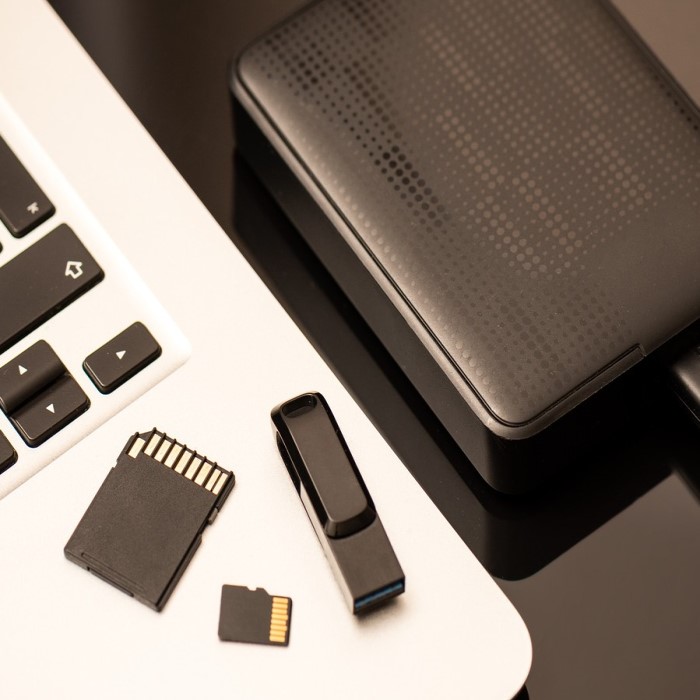
- Physical Obstacles: Metal objects block radio signals. Do not place your computer under a metal desk. Furthermore, keep the receiver away from metal USB drives.
- Distance: Wireless range is limited. Stay within the recommended range. Usually, this is about 10 meters or 33 feet. Walls and furniture reduce this range.
- USB 3.0 Interference: USB 3.0 ports emit interference. This can disrupt the 2.4GHz signal. Plug your receiver into a USB 2.0 port if available. Alternatively, use a USB extension cable. This moves the receiver away from the interference source.
Transitioning to solutions, reorganize your desk setup. Move your Wi-Fi router further away. Change the Wi-Fi channel on your router. This reduces overlap with the keyboard’s frequency. Additionally, keep your desk clear of clutter. A clear line of sight improves signal strength. If you suspect interference, test the keyboard in a different room. If it works there, your office environment is the problem. Identifying the source of interference solves the mystery. It ensures a stable connection for your work.
Advanced Fixes for Persistent Problems
Sometimes, basic troubleshooting fails. The issue might be deeper. You might need to perform a hard reset. This clears the keyboard’s internal memory. First, turn off the keyboard. Remove the batteries. Then, press and hold the “Esc” key. Hold it for about 30 seconds. This drains any residual power from the capacitors. Consequently, it resets the hardware logic.
- Clean Boot: Perform a clean boot of your computer. This starts Windows with minimal drivers. It helps identify if background software causes the conflict. If the keyboard works in clean boot mode, a startup app is the culprit.
- Reinstall USB Drivers: Go to Device Manager. Uninstall all “Universal Serial Bus controllers.” Restart the computer. Windows will reinstall them automatically. This fixes corrupted USB root drivers.
- Hardware Failure: If nothing works, the hardware might be broken. The internal circuit board could be damaged. Contact Logitech support for warranty claims. They are generally helpful with hardware defects.
Transitioning to professional help, do not open the keyboard yourself. Opening the case voids the warranty. Furthermore, you might damage the delicate membrane. If you have tried everything, accept the possibility of a defect. However, most issues are software-related. Therefore, persistence usually pays off. A hard reset is the most powerful user-level fix. It restores the device to factory settings. This often bypasses whatever glitch caused the lockout.
Frequently Asked Questions
Why is my Logitech keyboard not connecting?
There are several reasons for this. The most common reason is dead batteries. Additionally, the USB receiver might be loose. Interference from other devices can also block the signal. Finally, outdated drivers can prevent the computer from recognizing the keyboard.
How to reset a wireless keyboard Logitech?
First, turn the keyboard off. Remove the batteries. Press and hold the “Esc” key for 30 seconds. Reinsert the batteries. Turn the keyboard on. This process drains residual power and resets the internal circuitry.
How to fix wireless keyboard not connecting?
Start by replacing the batteries. Then, try a different USB port. Use the Logitech Unifying Software to re-pair the device. If using Bluetooth, remove the device and pair it again. Finally, update your computer’s drivers.
How to pair a Logitech keyboard with a PC?
For USB receivers, plug in the dongle and turn the keyboard on. Press the “Connect” button. For Bluetooth, enable Bluetooth on your PC. Put the keyboard in pairing mode. Select the keyboard from your computer’s list of devices.
Summarize
Technology issues are an inevitable part of modern life. However, they do not have to ruin your day. We have explored the various reasons behind a logitech keyboard not connecting error. The solution is often simple. It might just be a dead battery or a loose receiver. Sometimes, you need to update drivers or re-pair the device. By following the steps in this guide, you can diagnose and fix the problem efficiently. Always start with the basics. Then, move to more advanced troubleshooting. Remember to check for interference and software updates. These steps ensure your device works flawlessly. A functioning keyboard is essential for productivity. Now, you have the knowledge to keep it running smoothly. Enjoy your seamless typing experience.